How to Format a Paperback for KDP (Margins, Gutter, and Bleed)
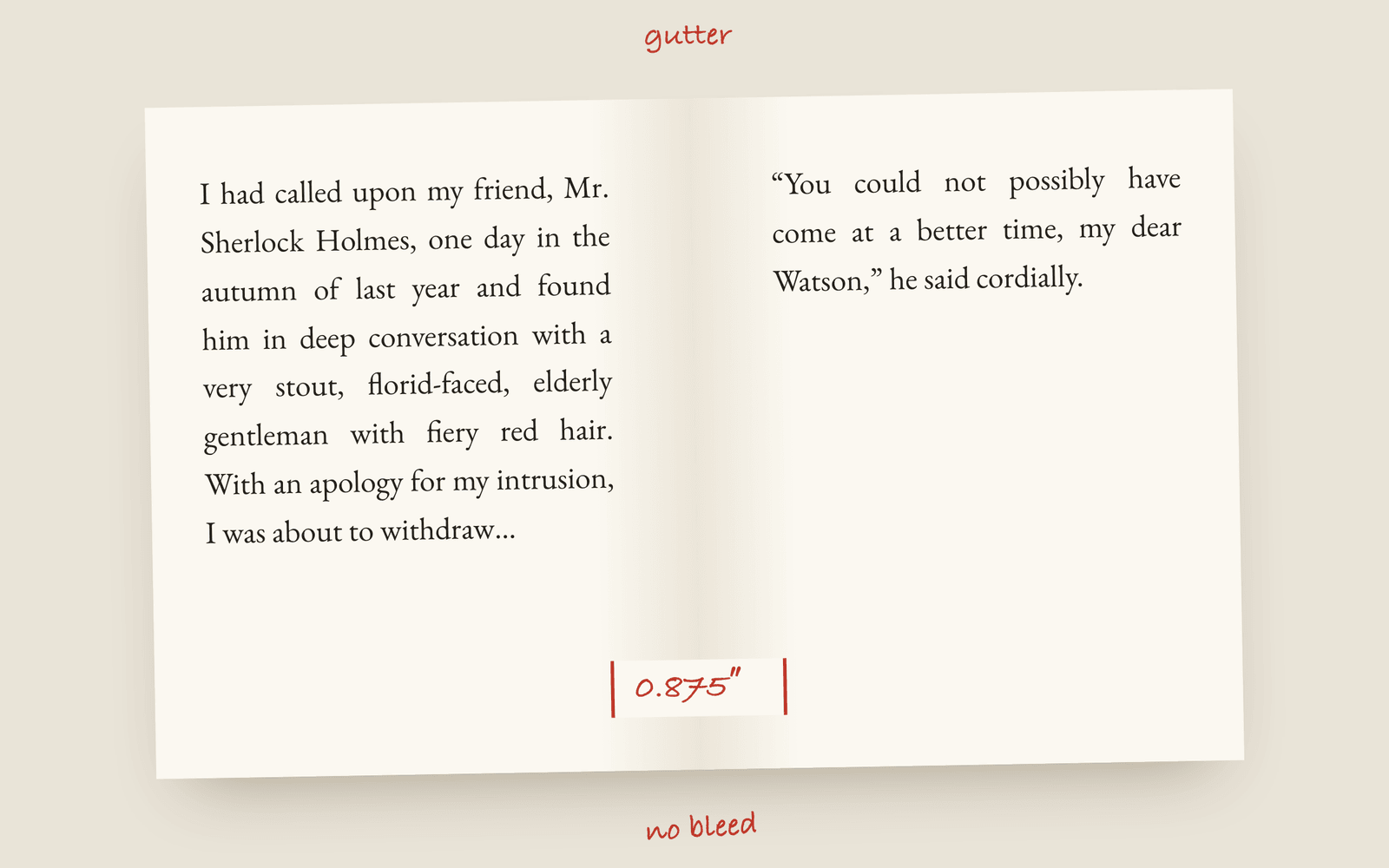
KDP rejects paperbacks for a short list of reasons: margins too tight for the page count, no room for the gutter, the wrong trim, or bleed set up wrong. Pick your trim first, use mirrored margins with an inside margin that grows with the page count, keep text away from the edges, and only use bleed if something prints right to the edge of the page.
Almost every KDP paperback rejection comes down to four settings. Get them right and the upload passes first time. Get one wrong and you get the rejection email, fix it, upload again and wait again. Here they are in order.
1. Trim size
Pick the trim before anything else, because it changes every other number. If you haven’t decided, read choosing a trim size first. If you format the book and then change the trim, you’re doing all of it again.
2. Margins and the gutter
The gutter is the inside margin, next to the spine, and it has to be wider than the others because part of it disappears into the binding. The thing people miss is that it has to grow with the page count. A thick book curves more at the spine, so a 600-page book loses more of each page than a 200-page one.
KDP publishes a table of minimum margins by page count, from 0.375 inches inside for a short book to 0.875 inches for one over 700 pages. Follow it. The outside margins need to be at least 0.25 inches, but that’s a minimum, not a good margin. There’s a whole post on book margins and the gutter with the numbers a novel actually uses.
The margins also have to be mirrored, so the wide one is on the inside of every page, left and right. In Word that’s a setting that’s off by default.
3. Bleed
Bleed only matters if an image, ornament or background colour prints right to the edge of the page. If it does, the art has to extend 0.125 inches past the trim, so there’s no white sliver after the pages are cut, and you upload the PDF with bleed turned on.
A normal text novel doesn’t need bleed. Turning it on when you don’t need it changes the page size KDP expects and makes your margins wrong. Leave it off unless you’re printing to the edge on purpose.
4. Page count and the spine
KDP has a minimum and maximum page count for each trim and paper, and the interior needs an even number of pages, which is why a blank page sometimes appears at the end. Your spine width for the cover comes from the final page count, so finish the interior before you order the cover.
Check it before you upload
The point is to catch all of this at your desk instead of in Amazon’s email. Galley’s print PDF sets mirrored margins with a gutter wide enough for any page count KDP prints, sized to your trim, with no bleed. KDP preflight in the Toolkit checks that the title, author, description and cover are there, that the page count fits the trim, that no chapter is empty and there’s a table of contents, before you export. It’s in the publishing docs, and export a print PDF for KDP has the steps. The PDF comes out of the same book as your EPUB, so the two always match.
Two free tools cover the numbers: the spine width calculator turns a page count into a cover size, and the KDP royalty calculator turns it into a print cost and a royalty.
More on publishing
- Kindle Unlimited Page Reads: How KENP PaysHow Kindle Unlimited pays authors through KENP page reads, roughly what a page is worth, how many KENP pages your novel is, and when a borrow beats a sale.
- KDP Royalties Explained: 35%, 70% and the Paperback MathsHow Amazon KDP pays for ebooks and paperbacks: the 35% and 70% ebook bands, the delivery fee, the paperback royalty and printing cost, and worked examples for a typical novel.
- The Copyright Page for a Novel, Line by LineWhat goes on the copyright page of a self-published novel, which lines are required, which are habit, and the wording most novels use.